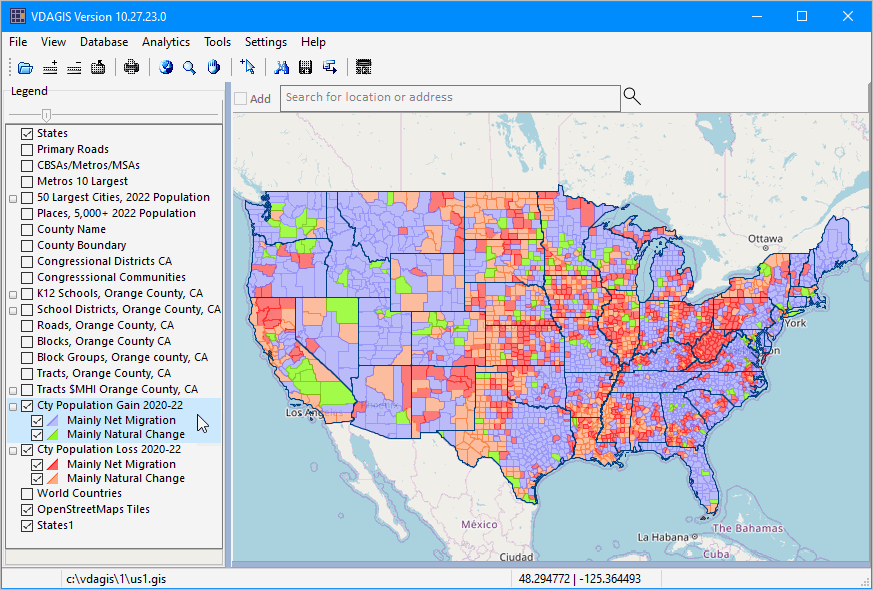
Installation & Setup

Contents
Install or update VDA Desktop GIS on your Windows computer:
.. run Installer to install VDA Desktop GIS on a Windows computer.
.. in general, the installation should be required just once. Use the automated updates to update your version.
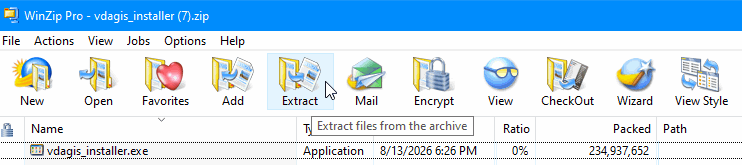
Click Installer (above link) this might take a minute, wait to see this .. next click Extract
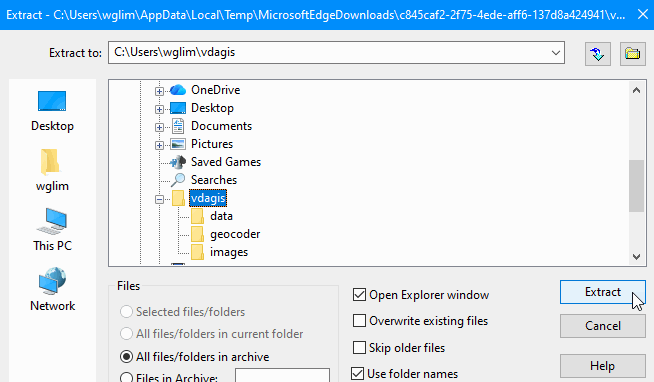
Extract to where .. as shown below .. your computer will have different characters for "wglim"
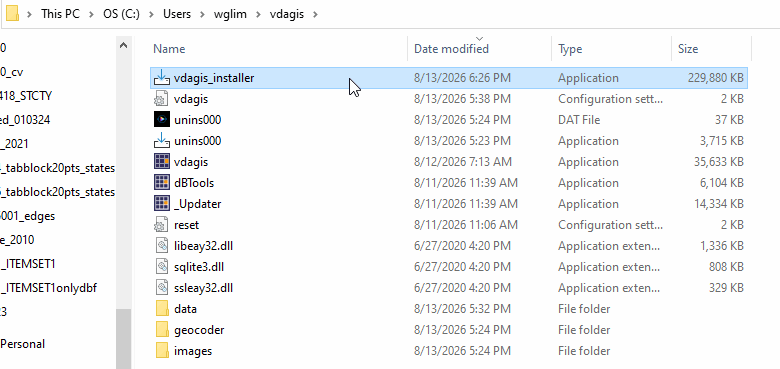
The installer is named "vda_installer" and is extracted to path you entered:
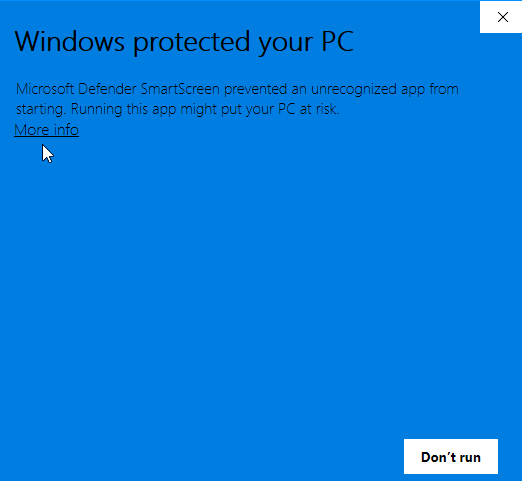
Next, you might encounter this message from Microsoft ...click more info
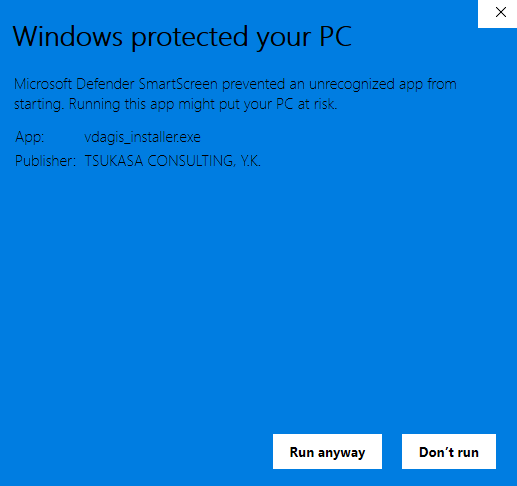
A similar screen appears ... click "Run anyway"
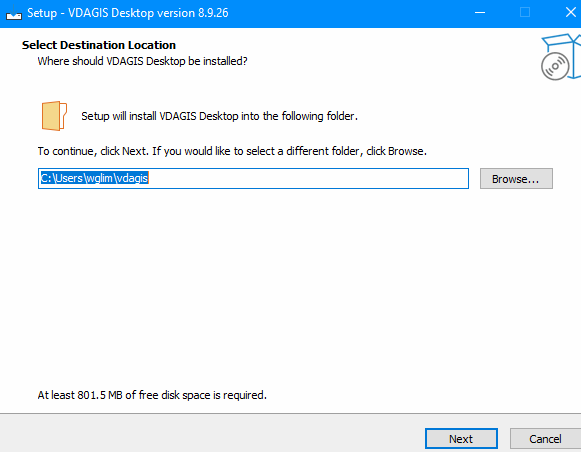
Next enter where VDAGIS Desktop will be installed .. click "Next" and accept default answers.
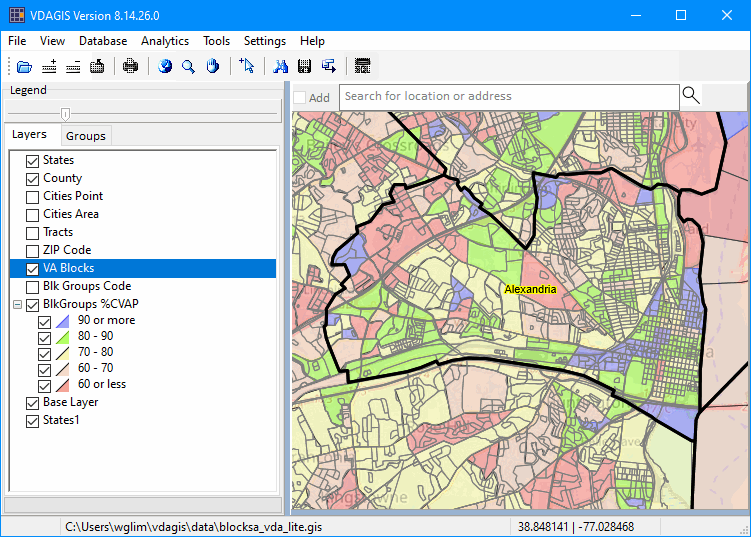
Arriving at the end objective.
E-mail us or call (888-364-7656) with questions/help.
| • | The installer will guide your through the installation. |
| • | The install process will take less than a minute. |
| • | It is recommended that all default settings be accepted. |
| • | Using default settings, all software and data are placed in the folder c:\vdagis. |
Upon completing the installation, you will be prompted to optionally view the readme and launch VDA Desktop GIS
| • | the readme provides more information on getting started. |
| • | When VDA Desktop GIS initially start, it will open the default GIS project. |
If you are using the Viewer-only version, proceed to the next section and start using VDA Desktop GIS.
Additional GIS Projects/Datasets
Optionally use any of the ready-to-use GIS projects/datasets described in the Mapping Statistical Data section. See http://proximityone.com/mapping-statistical-data.htm. All of those project require a UserGroup ID and some require further authorization.
Updates and Reinstalling VDA Desktop GIS
To reinstall or update VDA Desktop GIS re-run the VDA Desktop GIS Installer.
| • | all installer files are updated/replaced. |
| • | the start-up INI file (that might include your custom settings) is not replaced. |
Removing VDA Desktop GIS
To remove VDA Desktop GIS entirely, delete the folder c:\vdagis.
Supplemental Notes
After running the installer, you are presented with two options:
.. view this document, the User Guide
.. launch VDA Desktop
When you first launch VDA Desktop, registered users should use File>Login to add your login credentials.
.. this enables which VDA Desktop Level/features are available.
.. the login is only required one time, credentials are remembered for subsequent VDA Desktop starts.
.. your registration status, or level, and your name are shown in the statusbar, below the map window.
Registered users are those who have registered to use VDA Web GIS via https://vdagis.com
.. when you File>Login into VDA Desktop, use the same credentials as you use for VDA Web GIS.
Running VDA Desktop ..
At start-up VDA Desktop uses a default GIS project c:\vdagis\us1.gis (unless you change the start-up option).
.. you may open projects previously developed using CV XE GIS .. http://proximityone.com/cv.htm
.. all files used in the default GIS project c:\vdagis\us1.gis are stored locally on the installation computer.
Using Server Projects
Open any available server project using the feature File>Open Server Project
.. all server project files are located on the VDA server
.. one advantage to using server projects is that the layer data is stored on the server and requires no local computer space.
.. you can add layers to a server project using locally shapefiles.
Patterns of How and Why U.S. by County Population is Changing 2020-2022