|
SDGIS Demos |
  
|
| Show/Hide Hidden Text |
|
SDGIS Demos |
|
| Show/Hide Hidden Text |
This section provides information on how to install Basic SDGIS demonstration software and data on your computer. Note that the Basic SDGIS projects do not include Options data nor geocoded student data.
Terms of Use
You are granted a personal, single-user, non-exclusive license to use the CommunityViewer SDGIS software and data provided that you agree to all of the Terms of Use. You acknowledge that CommunityViewer SDGIS software (CV SDGIS) is a copyrighted proprietary software product developed by Warren Glimpse/Proximity. You agree not to redistribute the software or data to anyone else. You agree not to use data files provided with any other software. You agree not to use the data, data files, or software for any purpose except evaluation. You acknowledge that Proximity, nor anyone associated with Proximity, is responsible for any use whatsoever of the software, data or derivative uses. You agree to reference use of these resources in any presentation made using the software and data. Recommended citation: "Developed by Proximity (http://proximityone.com)."
Installation
| • | These operations require userid and password provided separately. |
| • | Run the CV SDGIS installer: http://proximityone.com/sdgis/1/cv_sdgis_setup.exe. |
| • | You must be using a Win32 compatible computer (Vista 64 is supported). |
| • | The CV SDGIS installer automatically installs the both the CV SDGIS software and the NY Demo SDGIS project and proceeds to start CV SDGIS and open the NY Demo. |
You may also install any one or all of the following CV SDGIS projects (these installers do not include the software):
| • | Topeka, KS School District -- http://proximityone.com/sdgis/1/topeka_setup.exe |
| • | Laredo, TX School District -- http://proximityone.com/sdgis/1/laredo_setup.exe |
With CV SDGIS installed, start CV SDGIS using the desktop icon (or run c:\sdgis\cv_sdgis.exe). The program will automatically start with NY Demo project. To open a project that you have installed, with CV SDGIS running, use File>Open and select the installed project.
Contact us with any question. In the message section mention SDGIS and describe any issue/question.
Click toggle for more information about each CV SDGIS Project.
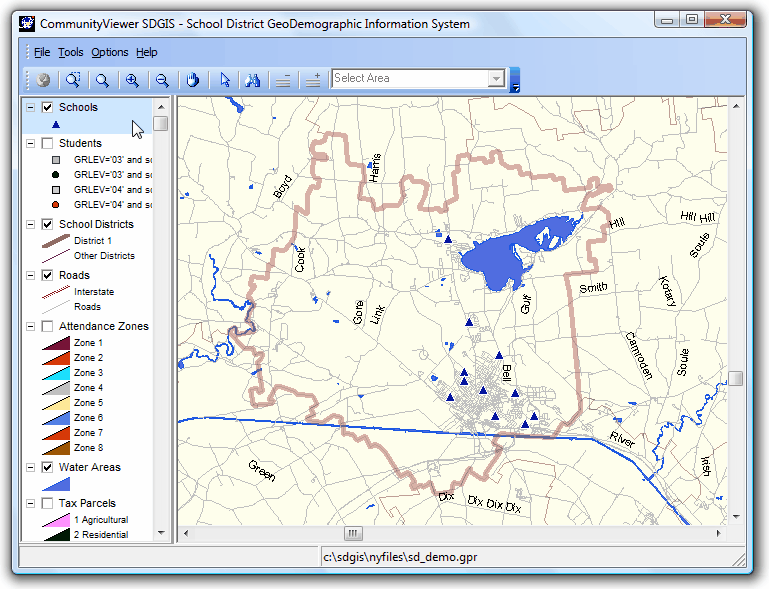
Start-up view of the c:\sdgis\nyfiles\sd_demo.gpr project.
|
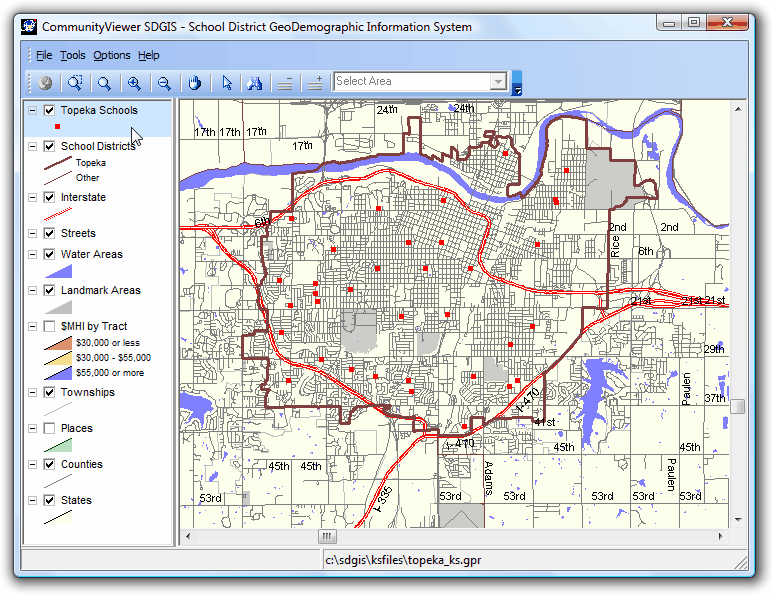
Start-up view of the c:\sdgis\ksfiles\topeka_ks.gpr project.
|
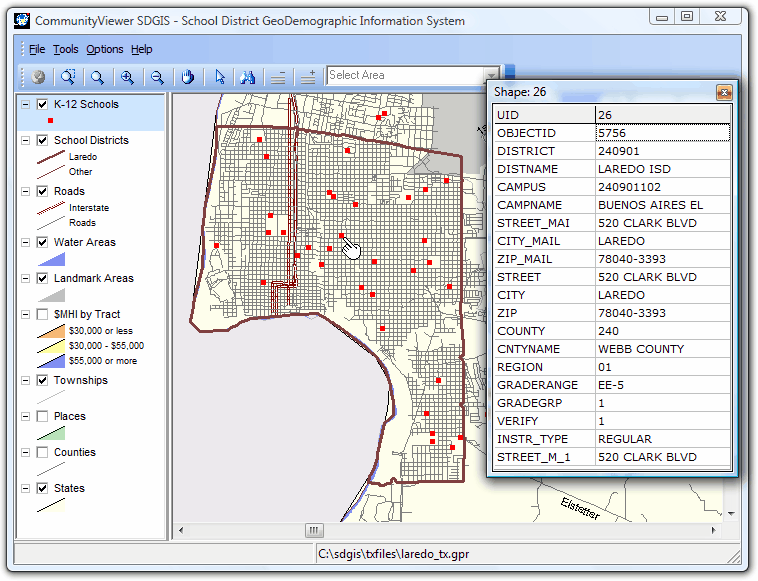
Start-up view of the c:\sdgis\txfiles\laredo_tx.gpr project. Identify tool used to select and display mini-profile for a school (see pointer on map)
|
Page url: http://proximityone.com/sdgis/guide/index.htm?basic_sdgis_demo.htm